Forest of Avon

Interactive map help
Navigating around the map
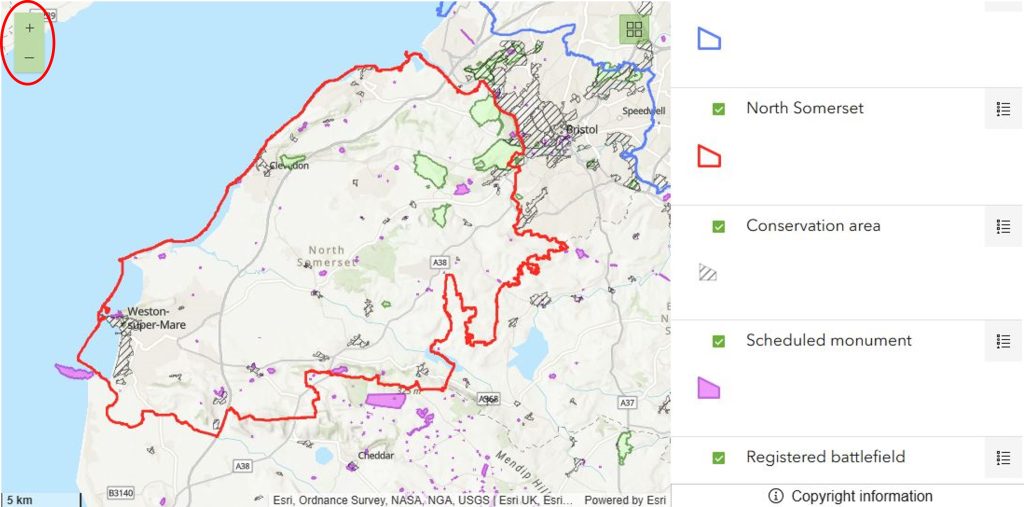
Use the zoom in and out buttons to zoom in and out of the map, you can also use the wheel on your mouse to zoom in/out. Click and drag with your mouse to pan around the map.
Layer list
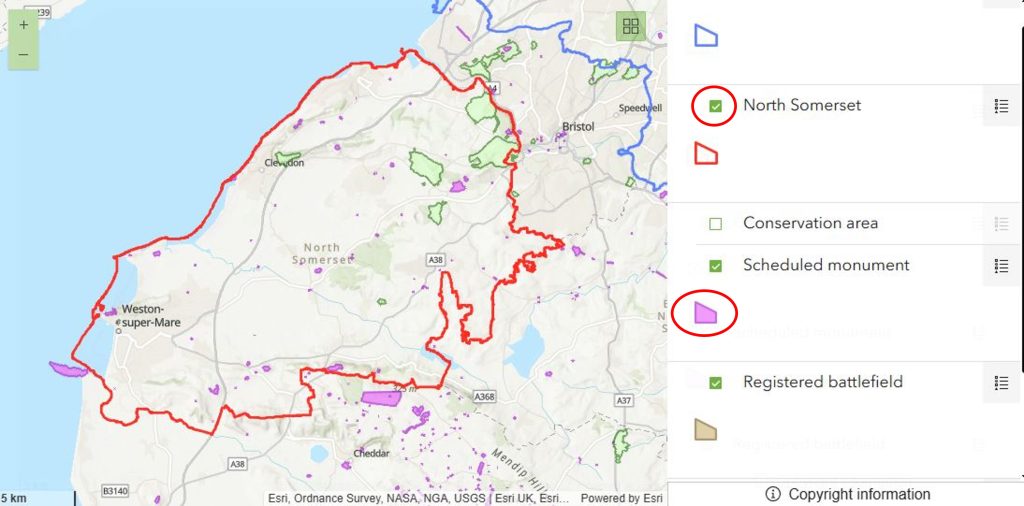
The layer list to the right shows all the data on the map. To turn the data on – i.e. make it appear on the map – click the little box next to the layer name. Underneath each of these layer names is the symbology. You may need to scroll down to view all layers.
Basemap gallery
You can change the basemap using this button:

Copyright information
Click on the Copyright information button to view data and copyright information.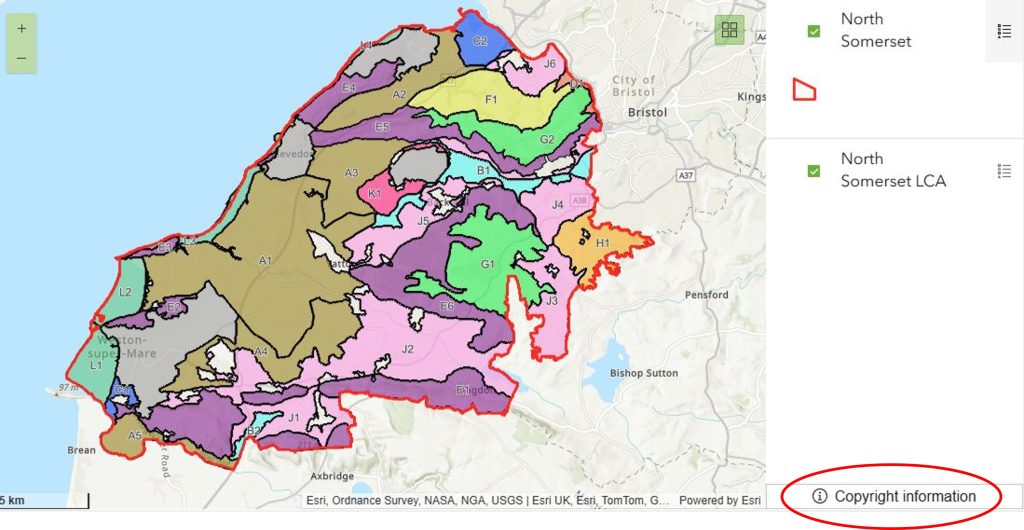
Selection
Some maps have pop ups enabled, this means that if you click within the map a pop up will appear with information about the feature you have selected. E.g. on the LCT overview page a pop up will appear when you click on an LCA. Some pop ups may also contain hyperlinks to other parts of the website, these will open in a new tab.
The selected area will glow blue. To deselect, click somewhere else on the map.
Where multiple features overlap, multiple popups will appear. Click on the arrows on the popup to swap which feature is selected. Or click on the select feature button to change which feature is selected from a list.
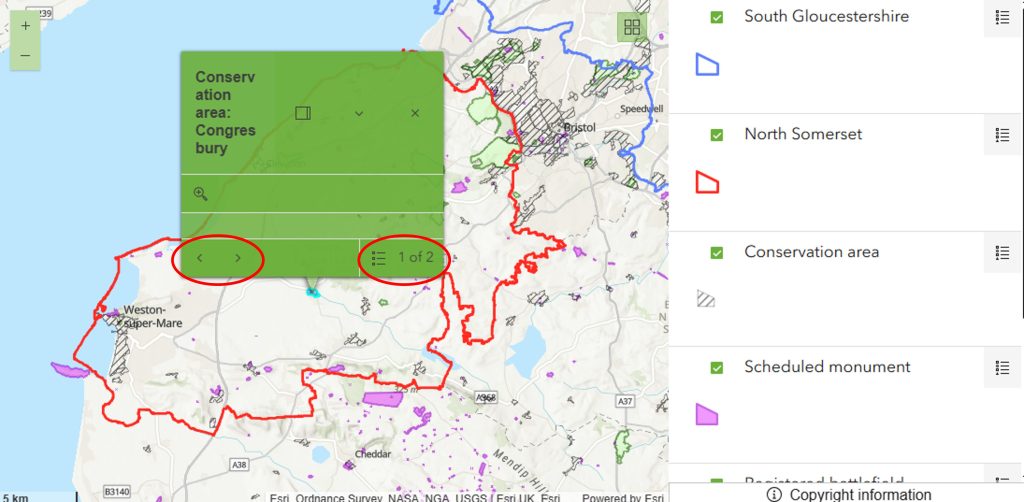
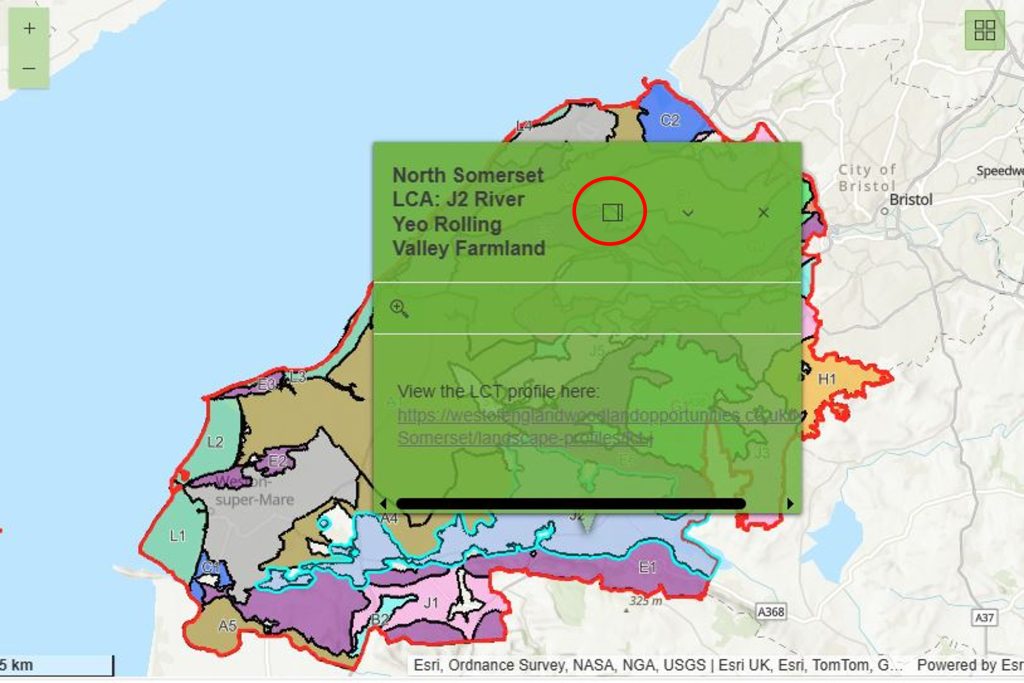
Click the dock button to dock the pop-up window to the top of the map.
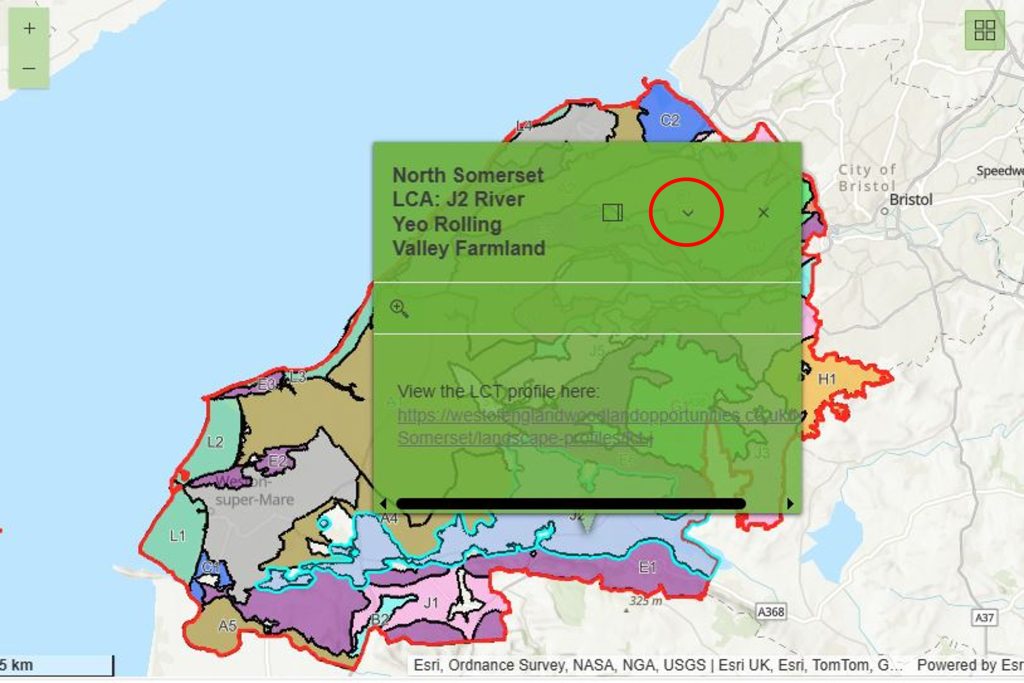
Click collapse to hide the additional information in the pop-up window. Click expand to view the additional information in the pop-up window.
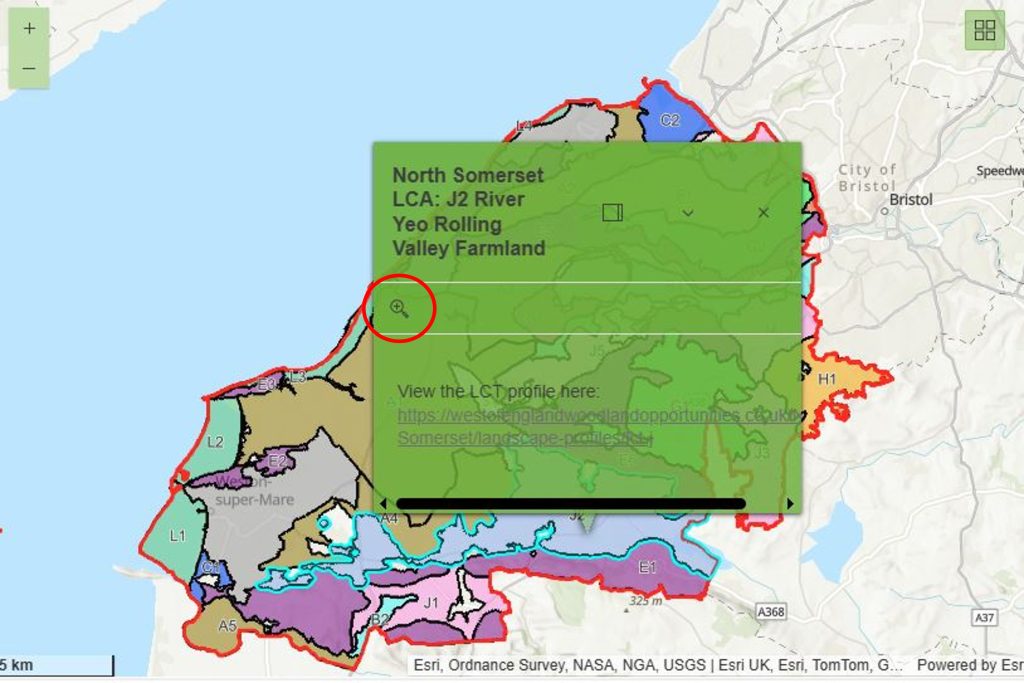
Click the zoom to button to zoom to the selected feature on the map.
Using the maps on different devices
The interactive map layout will automatically change to suit the size of the screen it is opened on. View the interactive maps in a new tab on a computer screen for the best experience.